Create an AWS Lambda Function
-
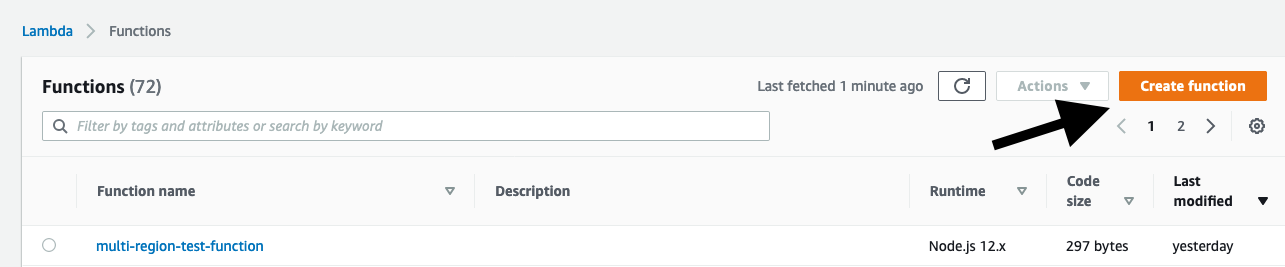
Go to the AWS Lambda console: https://console.aws.amazon.com/lambda.
For this example, choose the region us-east-1 (Northern Virginia). -
In the navigation pane, on the left side of the console, select Functions (Functions).
-
Choose Create Function (Create Role).
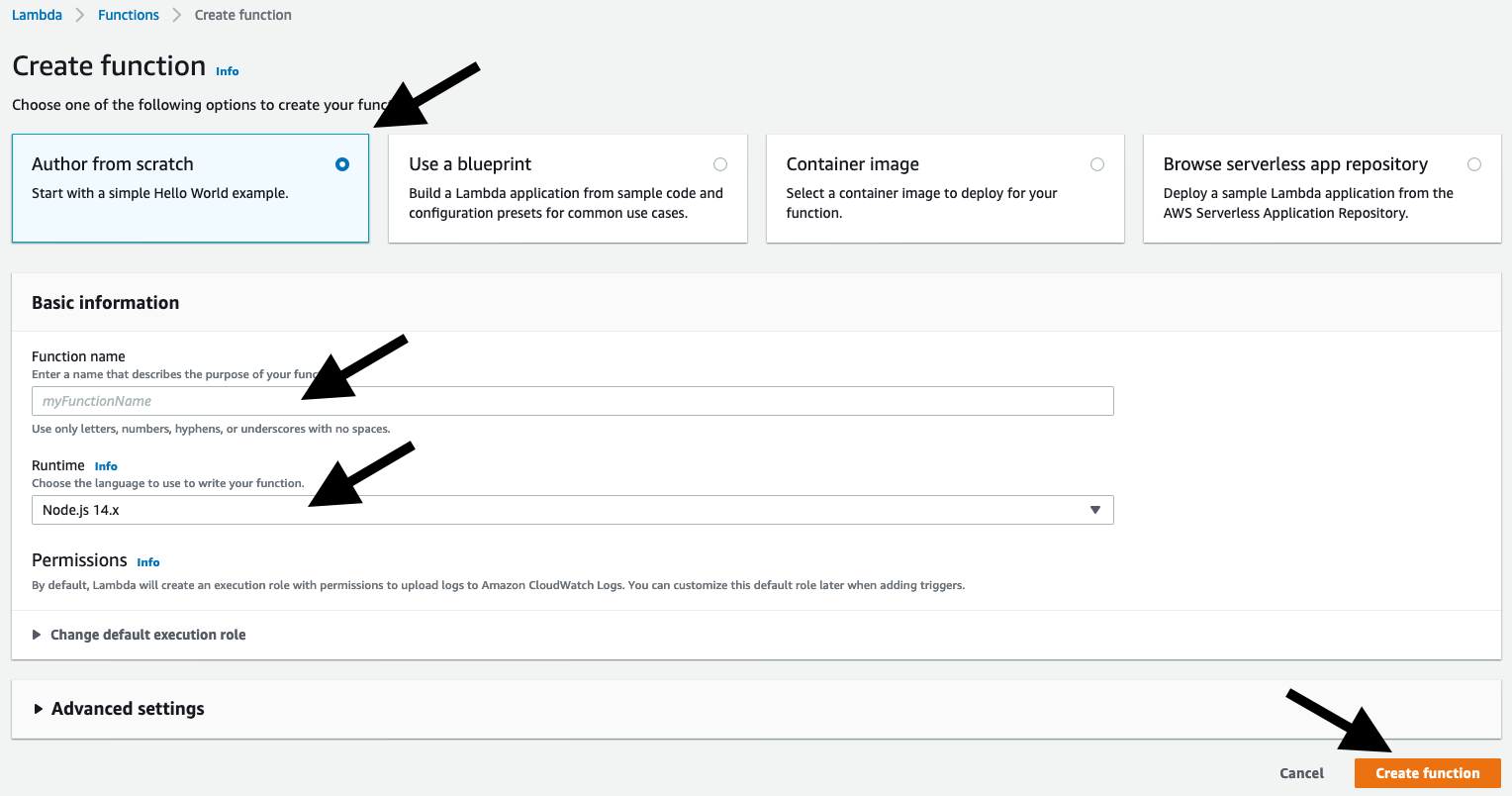
- Select Author from scratch (create from scratch)
- In Function name (function name) insert multi-region-test-function. In Runtime, choose Node.js 14.x.
- To create the role, select Create (Create).
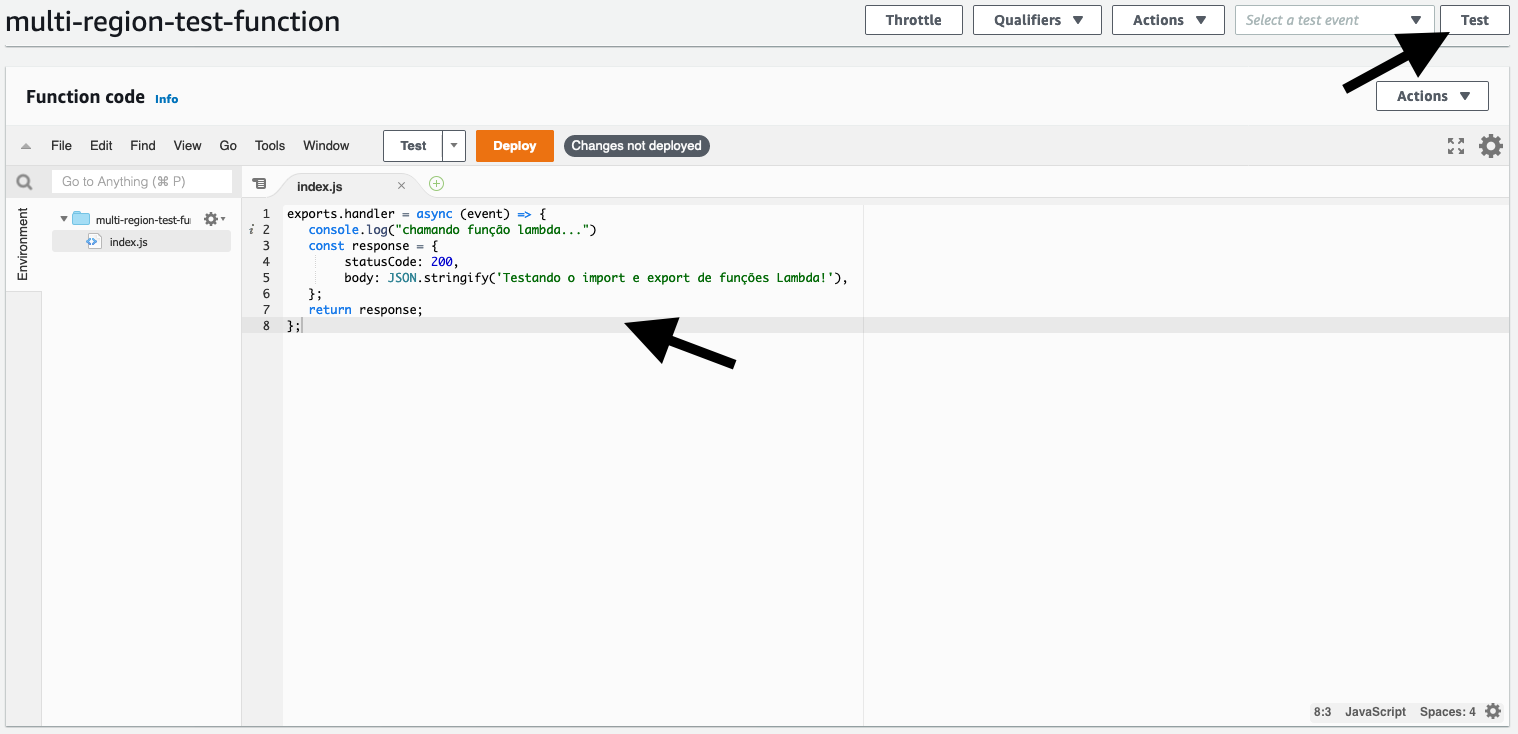
- The function will be created and you will be redirected to the console’s function editor. In Function Code (Function Code) Copy and paste the code below:
exports.handler = async (event) => { console.log("chamando função lambda...") const response = { statusCode: 200, body: JSON.stringify('Testando o import e export de funções Lambda!'), }; return response; };- Click Test (test) in the top right corner. A pop-up will appear prompting you to set up a test event.
- Select Create new test event (Create new test event), give it the name eventdata in the field Event name (event name) and click Create (Create)
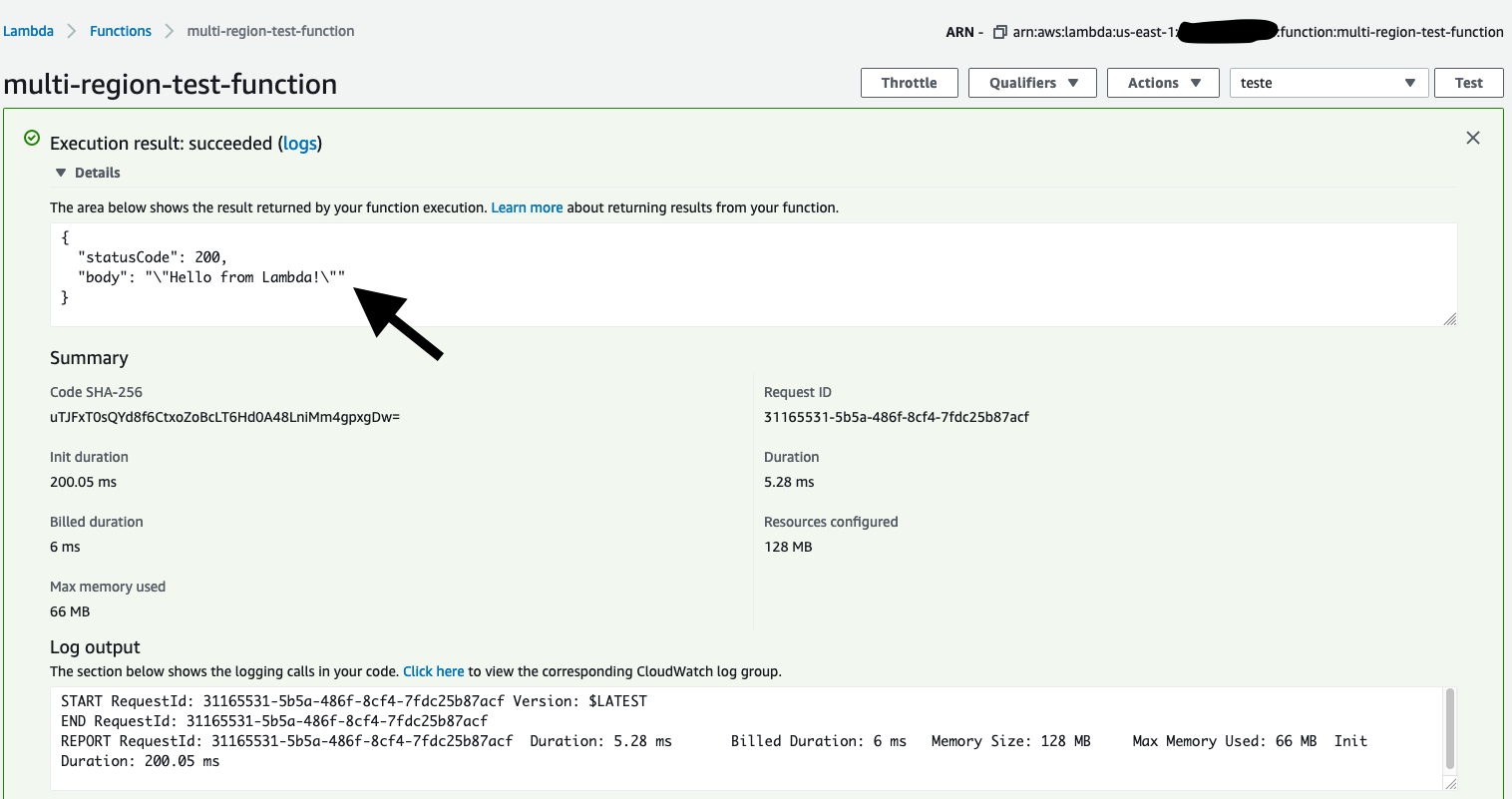
- Click again Test. The message Execution result: succeeded should appear. By clicking on details, a payload JSON should appear with the text * Hello from Lambda! *.
-
Your Lambda function was created successfully! We will now export it from the current region for further import into another region.
Export the created Lambda function
- Go to the AWS Lambda console: https://console.aws.amazon.com/lambda.
Remembering that for this example we are using the region for now us-east-1 (Northern Virginia). - In the list of roles, select the role multi-region-test-function created earlier. The Configuration tab will appear.
- Click Actions -> Export Function
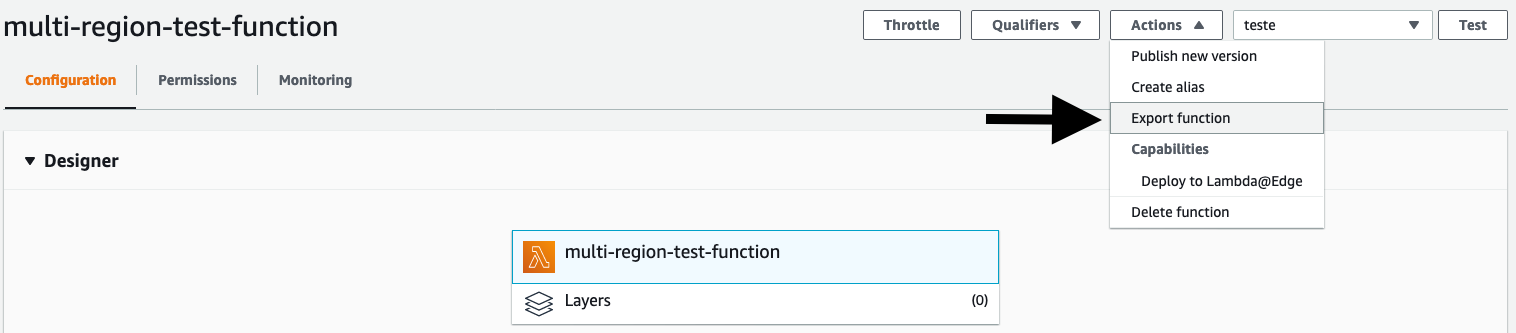
- A pop-up will open offering two options for download: Download AWS SAM file or Download deployment package.
- Select Deployment package and wait for the download. Note that the downloaded file is a zip file, but with no extension. After downloading, rename the file with the .zip extension so we can use it later.
Import the Lambda function into the second region
- Go to the AWS Lambda console: https://console.aws.amazon.com/lambda.
- Select the region in the combo in the upper right corner of the console.
For this example, I will use the region sa-east-1 - South America (Sao Paulo) - If the function doesn’t exist:
- Perform steps 1.2 and 3 in item 3 of the section Create an AWS Lambda Function above.
- In the list of roles, select the role multi-region-test-function created. The Configuration tab will appear.
- Under Function Code, click Actions, upload to .zip file.
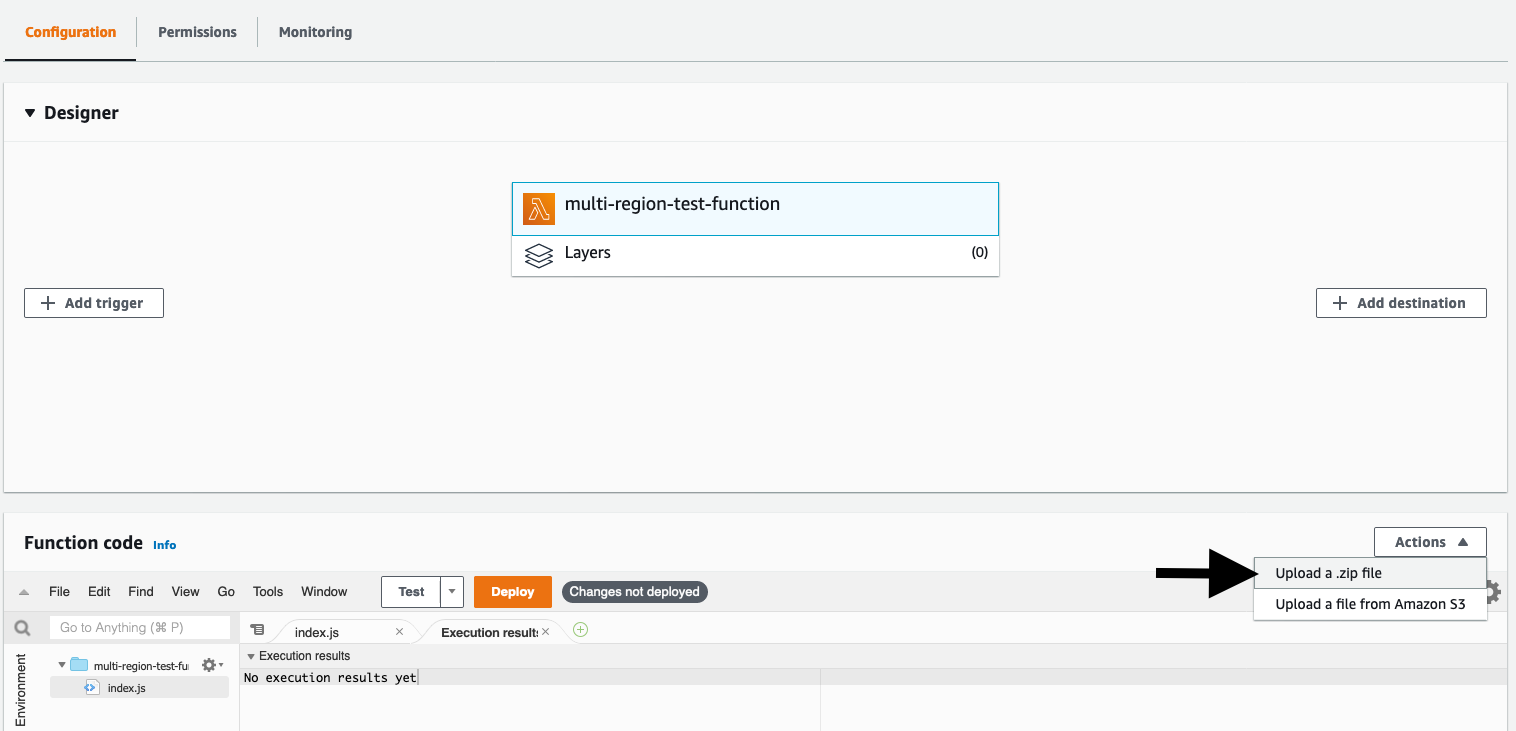
- You can also import your function through an S3 bucket. For this, select Upload a file from Amazon S3 and enter the URL where the.zip is located.
- Select the previously downloaded zip file (don’t forget to rename it with the .zip extension) and click Save.
- (Optional) If you want to test your function, set up the test payload as we did in steps 5.6 and 7 of item 3 in Create a Lambda function above.
- Under Function Code, click Actions, upload to .zip file.
- Ready! Its Lambda function has been copied from one region to another.
Cleaning up
- Delete the lambda functions created in both regions.